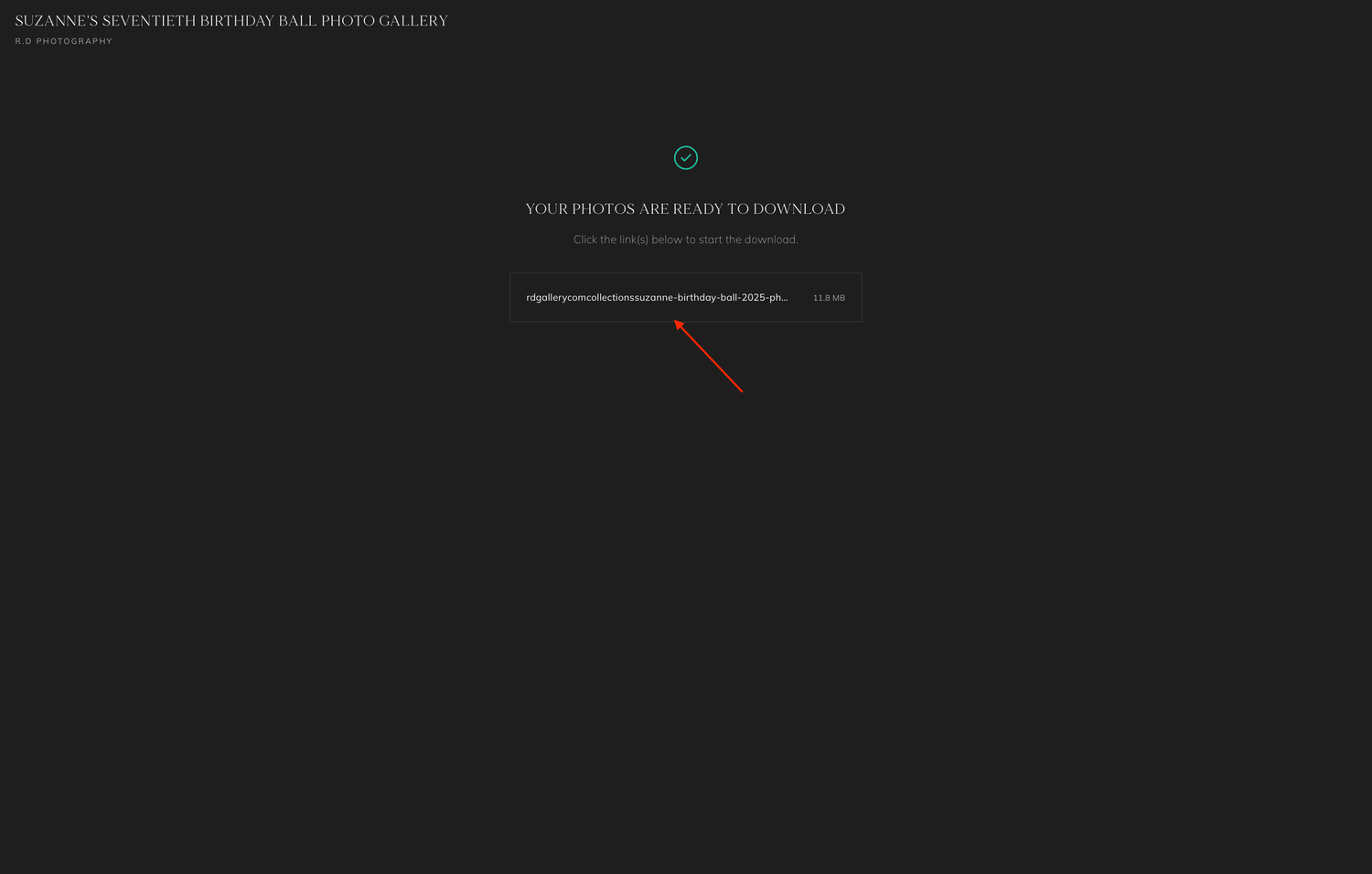
How to...
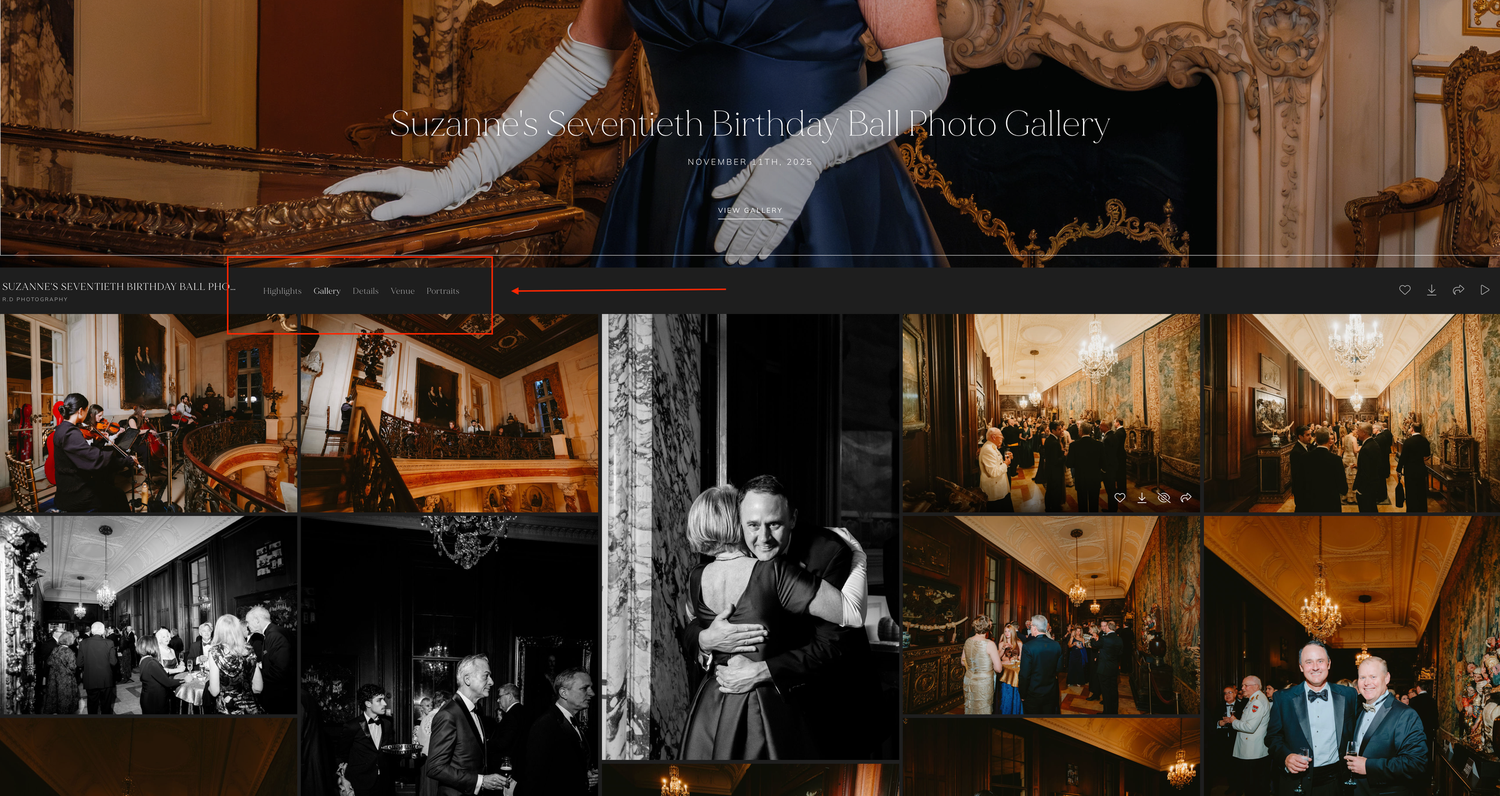
Navigating the tabs
The tabs are right under the main photo. Just click Highlights, Gallery, Details, Venue, or Portraits to move between sections.
How to Download Photos on Your Phone
Step 01
Select the photo and tap download icon

Step 02
Image opens in a new window
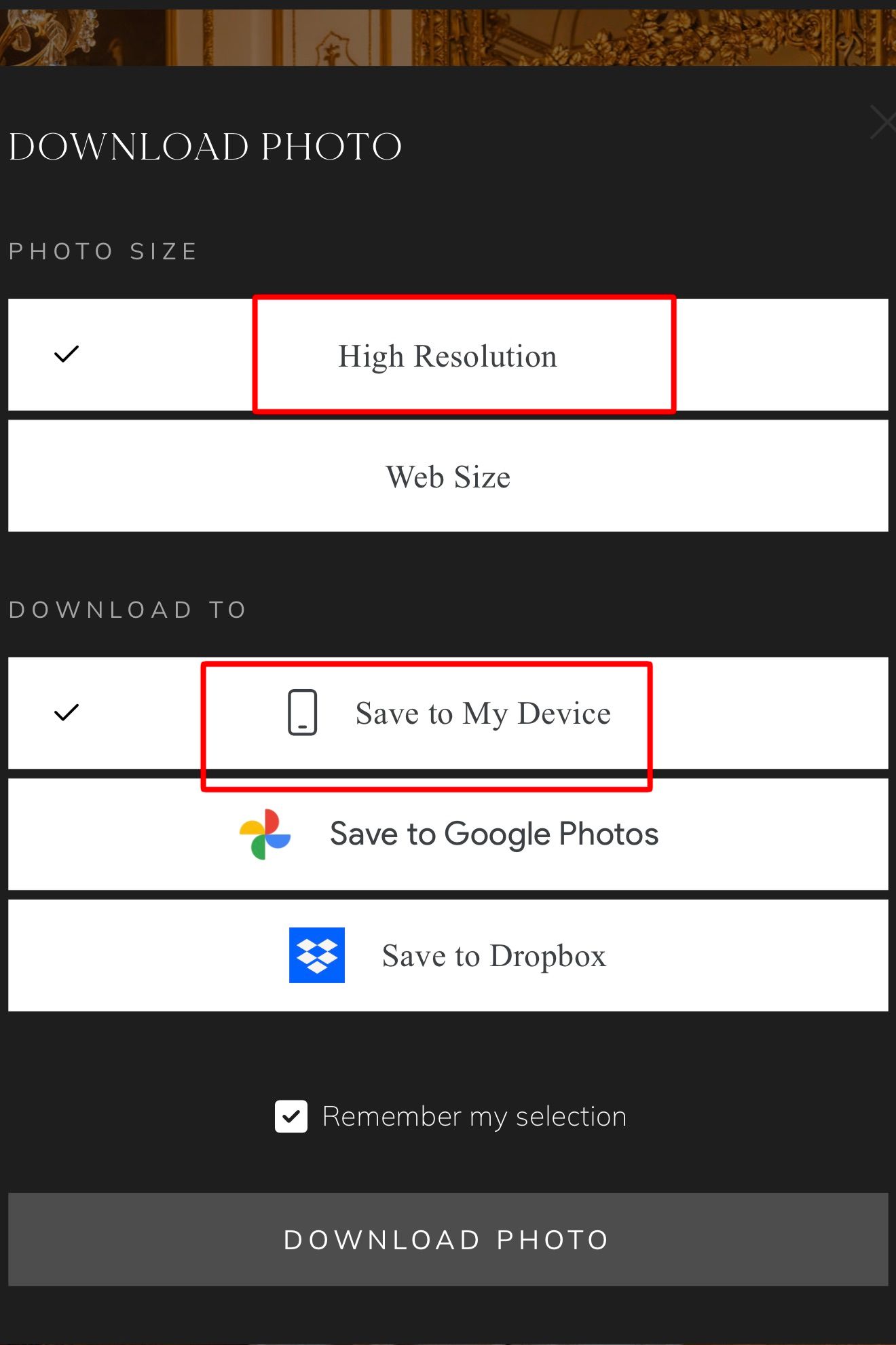
Step 03
Enter email and pin then select high resolution
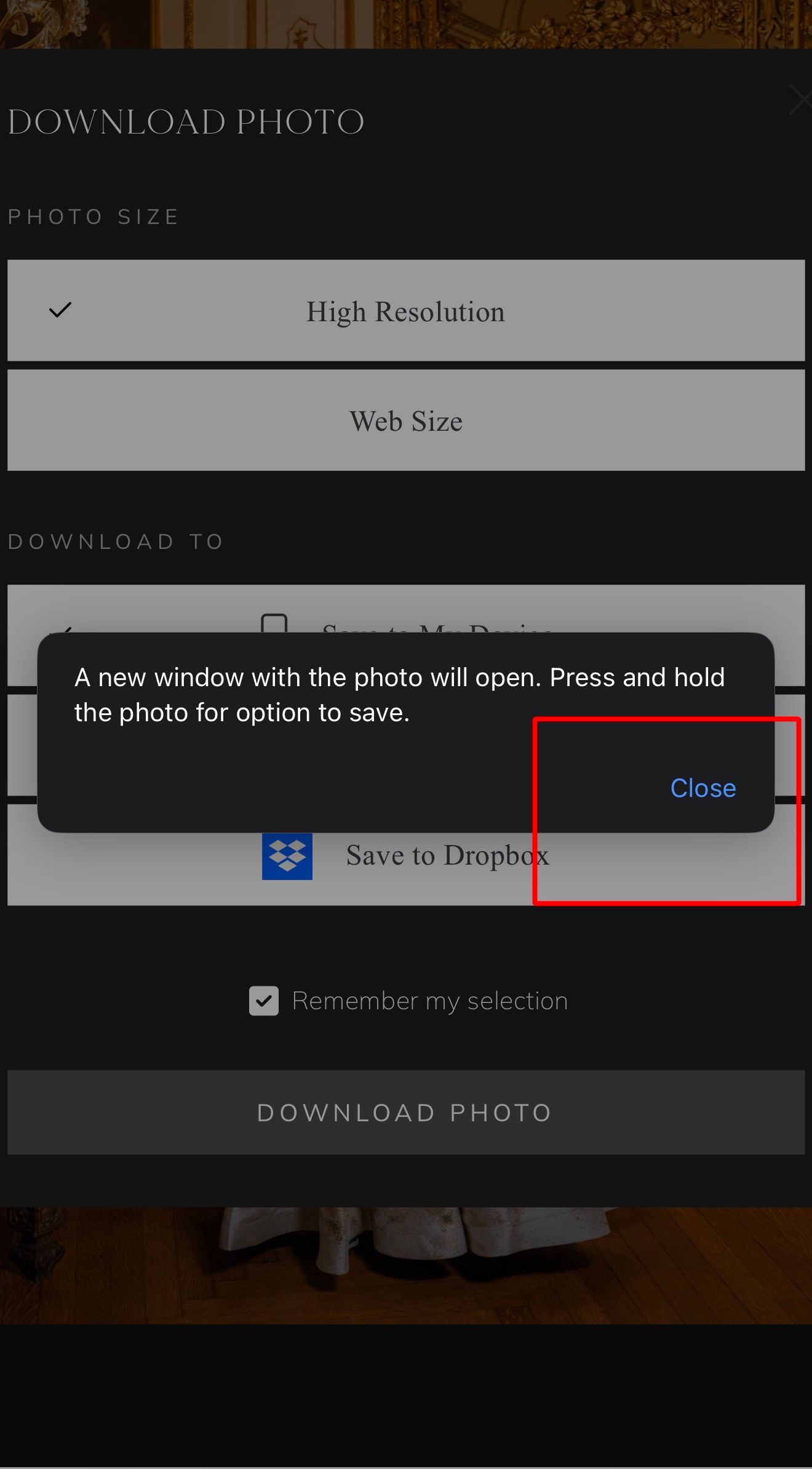
Step 04
Press and hold → Save to Photos.

Downloading images from desktop
Step 1 — Open the Photo
Click on any image to view it in full screen.
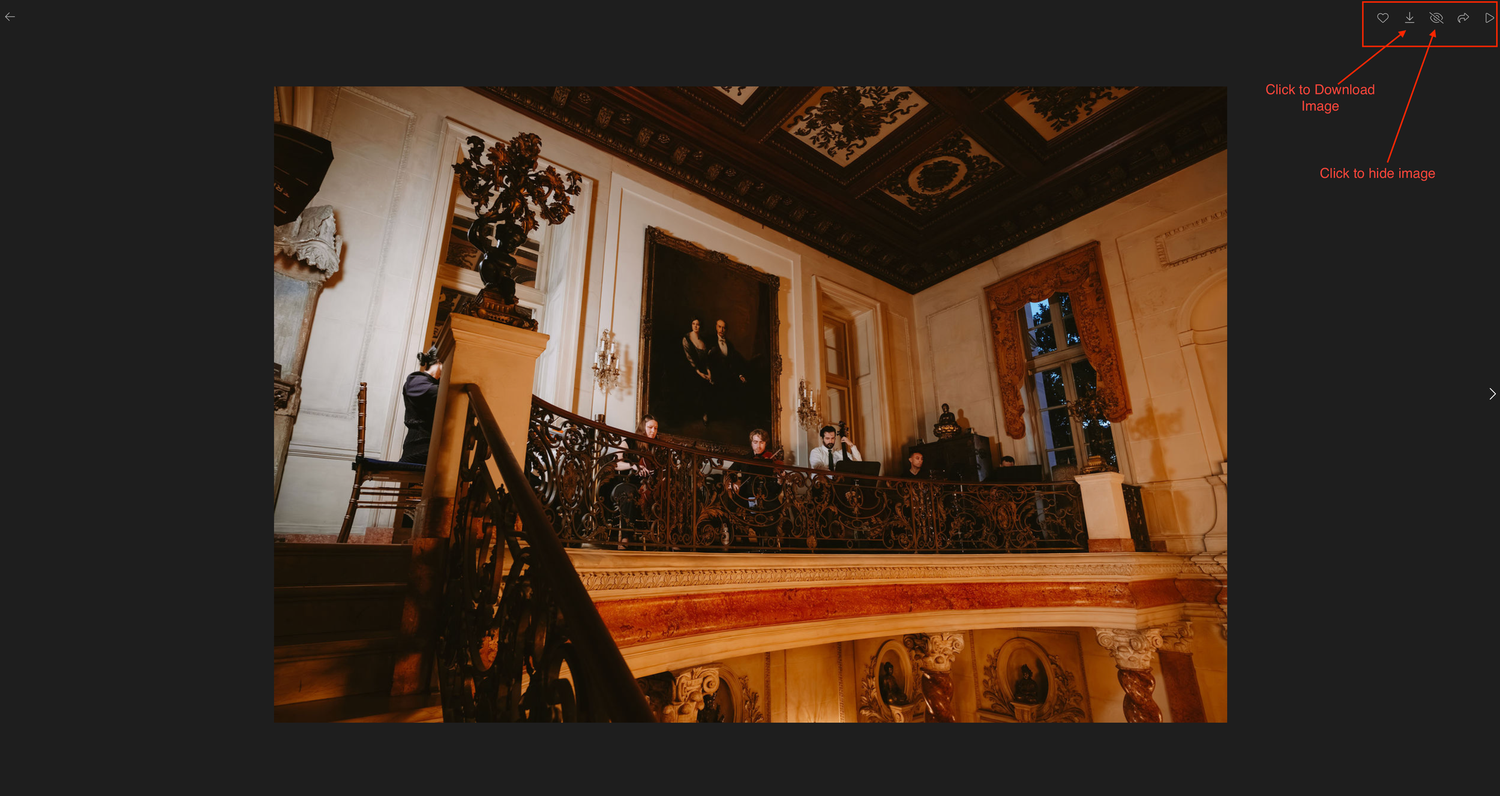
Step 2 — Click the Download Icon
In the top-right corner, click the arrow pointing down (download icon).
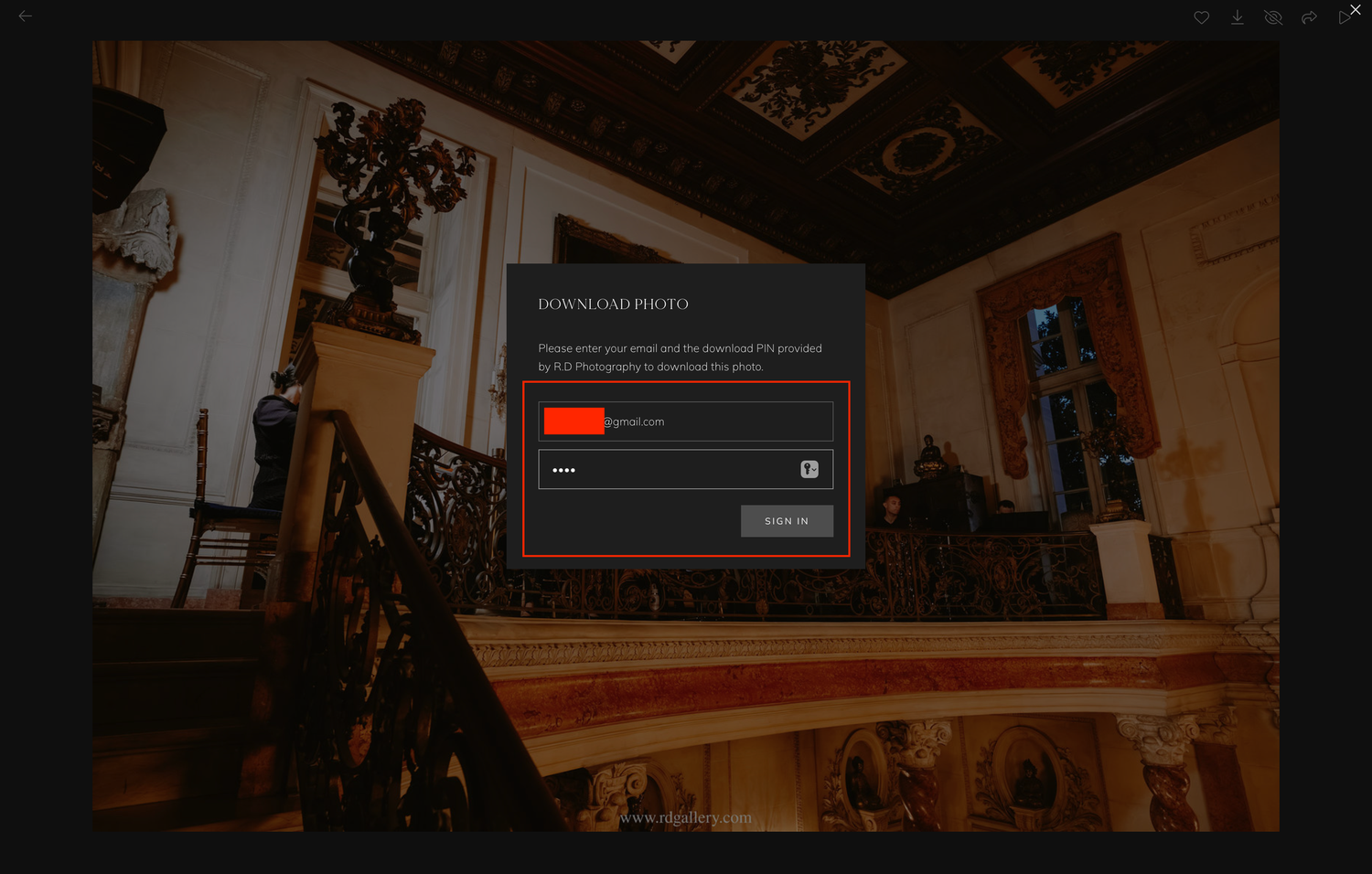
Step 3 — Enter Email + PIN
A small window will appear asking for your email and the download PIN provided to you.
Enter both, then click Sign In.
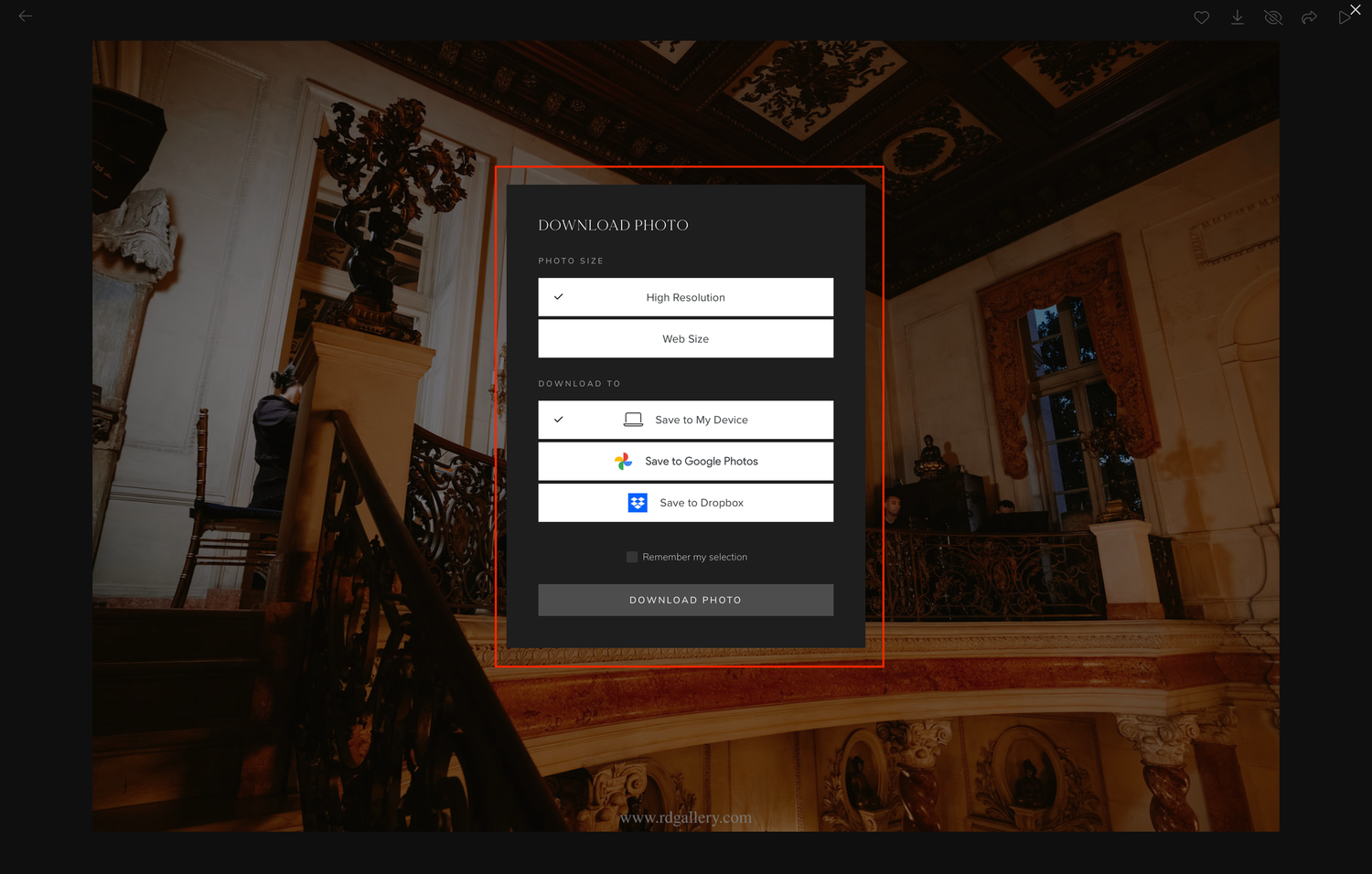
Step 4 — Choose File Size & Location
Select High Resolution for best quality, then choose where you want the file to save (e.g., your device or Dropbox).
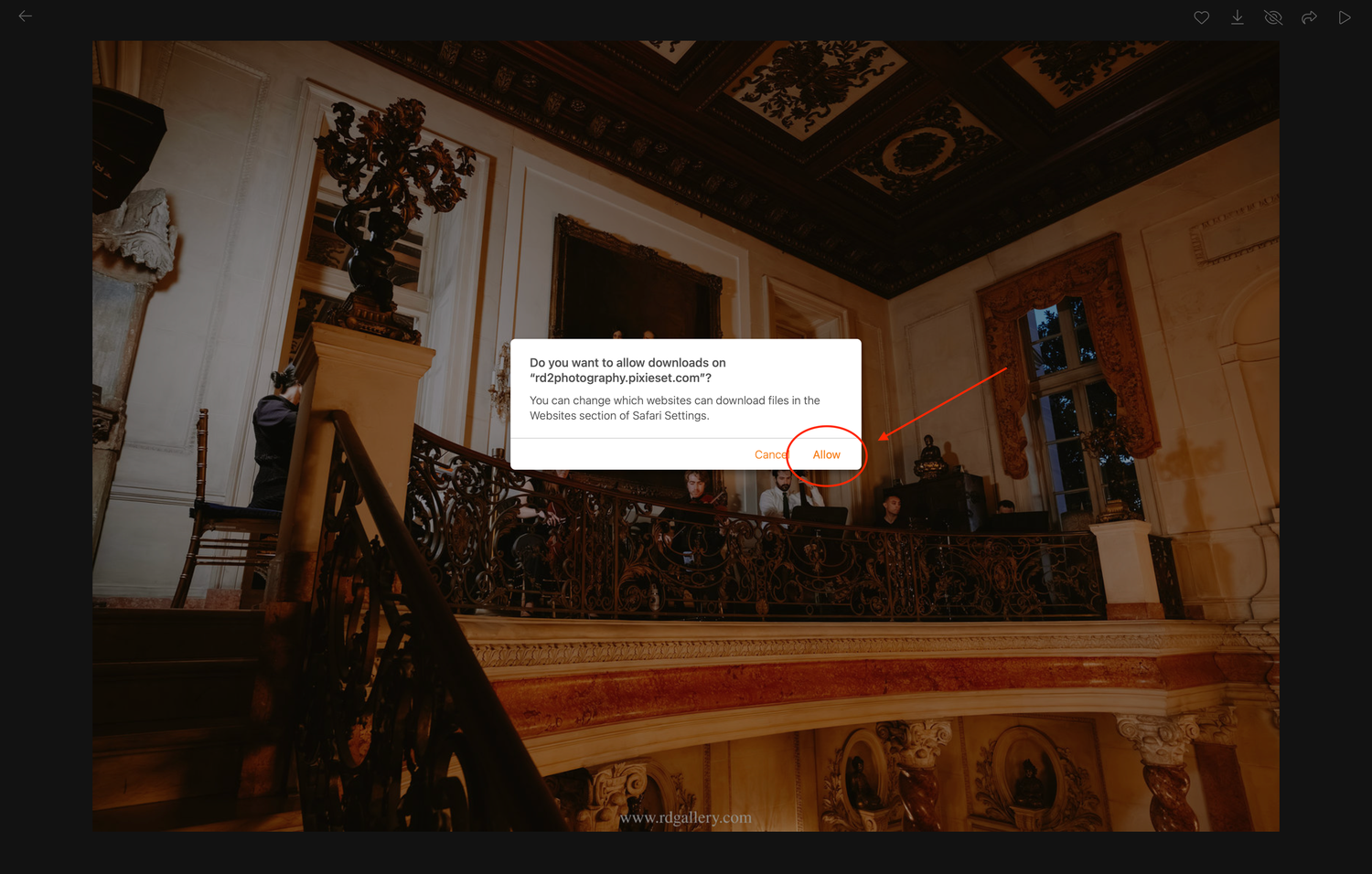
Step 5 — Allow the Download
Your browser may ask for permission to download from Pixieset.
Click Allow. Your photo will then download to your computer.
How to Download the Entire Gallery (Desktop)
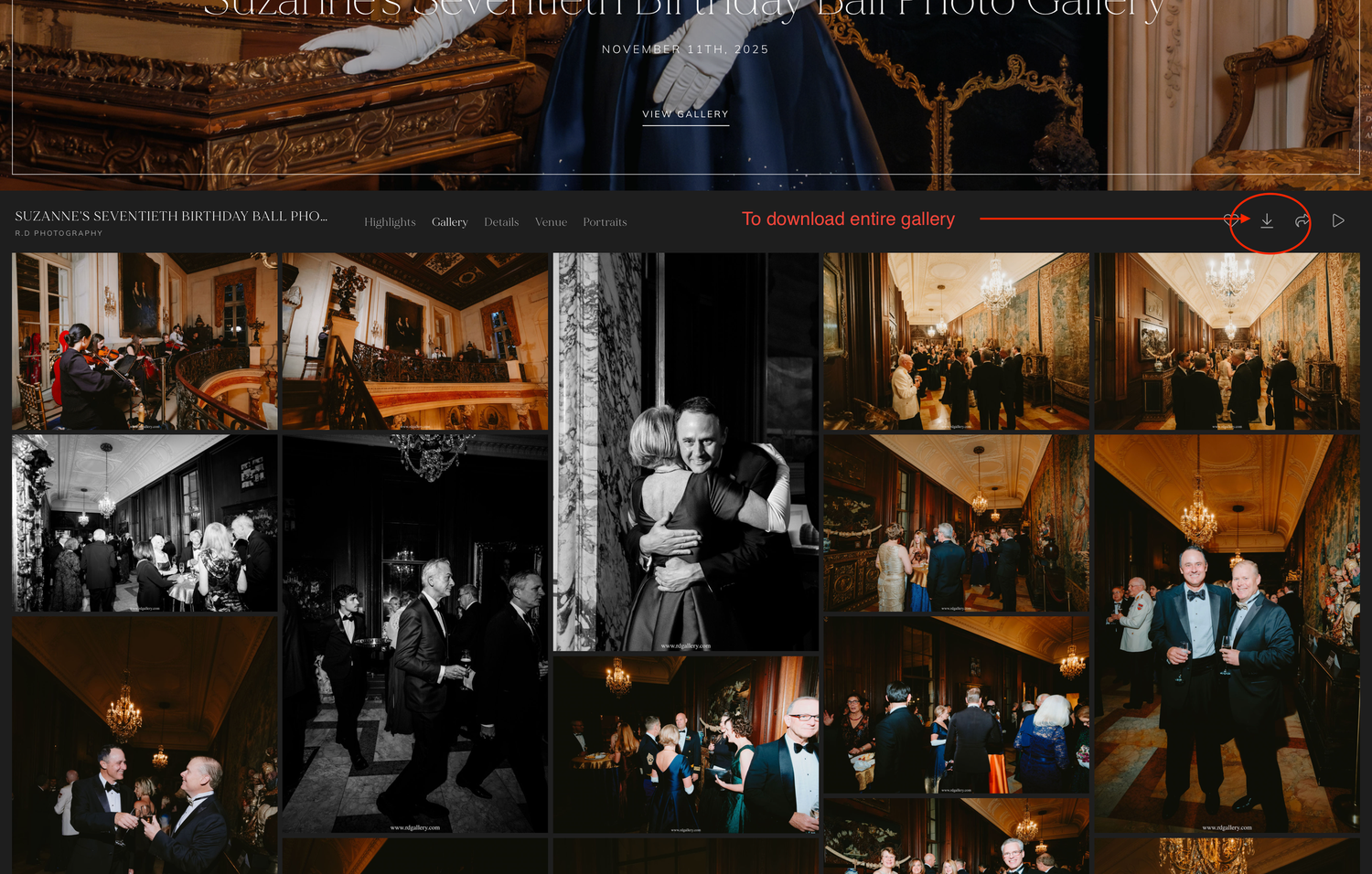
1. Click the Download Icon
At the top right of the gallery, click the arrow pointing down to download the full collection.
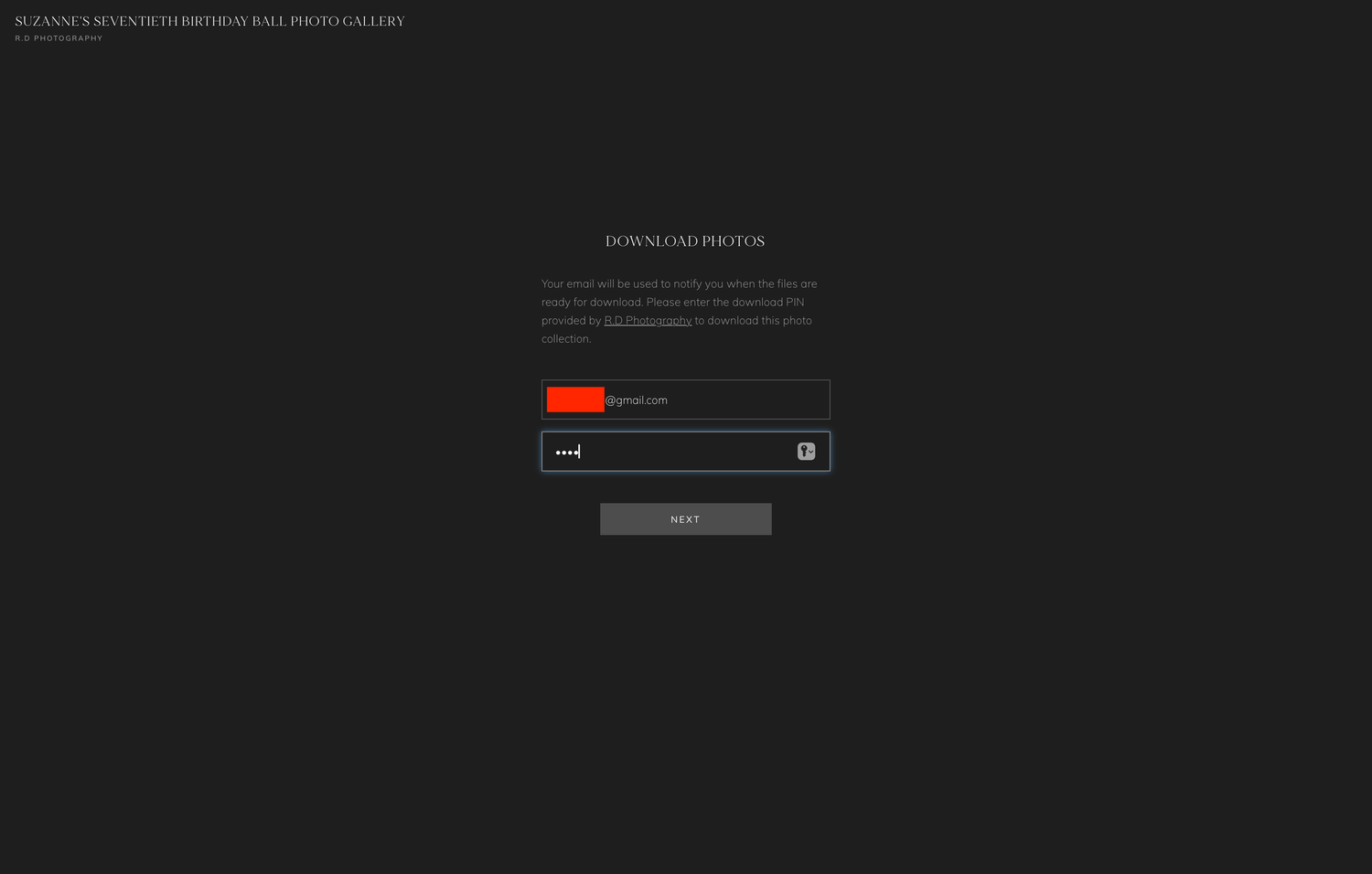
2. Enter Your Email + Download PIN
Type your email and the PIN provided to you, then click Next.
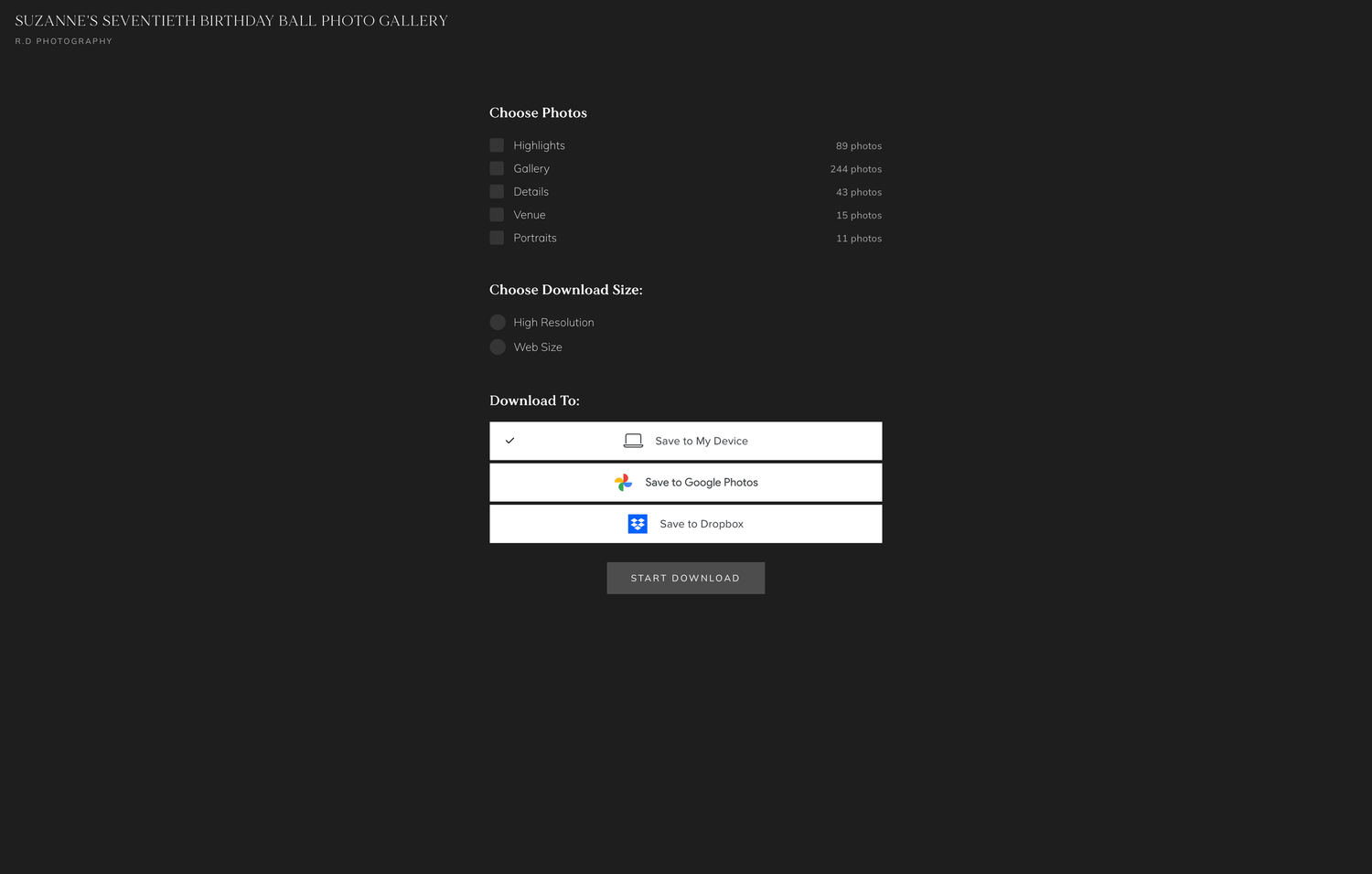
3. Choose What You Want to Download
Select the sections you want (or choose all), pick the size (High Resolution recommended), and choose where you want the files saved.
4. Click “Start Download”
The system will prepare your files. When ready, you’ll see a link—click it to begin downloading the ZIP file containing all photos.